> ## Documentation Index
> Fetch the complete documentation index at: https://docs.verbeo.ai/llms.txt
> Use this file to discover all available pages before exploring further.
# Import a Phone Number from Twilio
> Connect a Twilio phone number to Verbeo AI using Twilio Elastic SIP Trunking so your AI agents can take inbound calls and place outbound calls.
Verbeo AI connects to Twilio through **Elastic SIP Trunking**. Once the trunk is set up, calls to and from your Twilio number flow through Verbeo, and you can assign AI agents to handle them.
There are two directions to configure, and it helps to keep them straight:
* **Termination (outbound):** traffic that leaves Verbeo and goes out to the phone network through Twilio. This is what powers your agents' *outbound* calls.
* **Origination (inbound):** traffic that arrives at your Twilio number and is routed *into* Verbeo. This is what lets your agents answer *inbound* calls.
At a high level you will create a trunk in Twilio, point its termination and origination at the right places, attach your number, and then register that number inside Verbeo. The whole process takes about 10 minutes.
**Before you start, make sure you have:**
* A **Twilio account** with at least one voice-capable phone number (or funds to buy one).
* A **Verbeo AI workspace** with at least one **Agent** already created (you'll assign it to the number at the end).
* The **Verbeo origination SIP URI**: `sip:1mq55afrqof.sip.livekit.cloud`. This is the **same for every Verbeo account**. You'll point Twilio's origination at it in Step 8.
## Part 1: Set up the trunk in Twilio
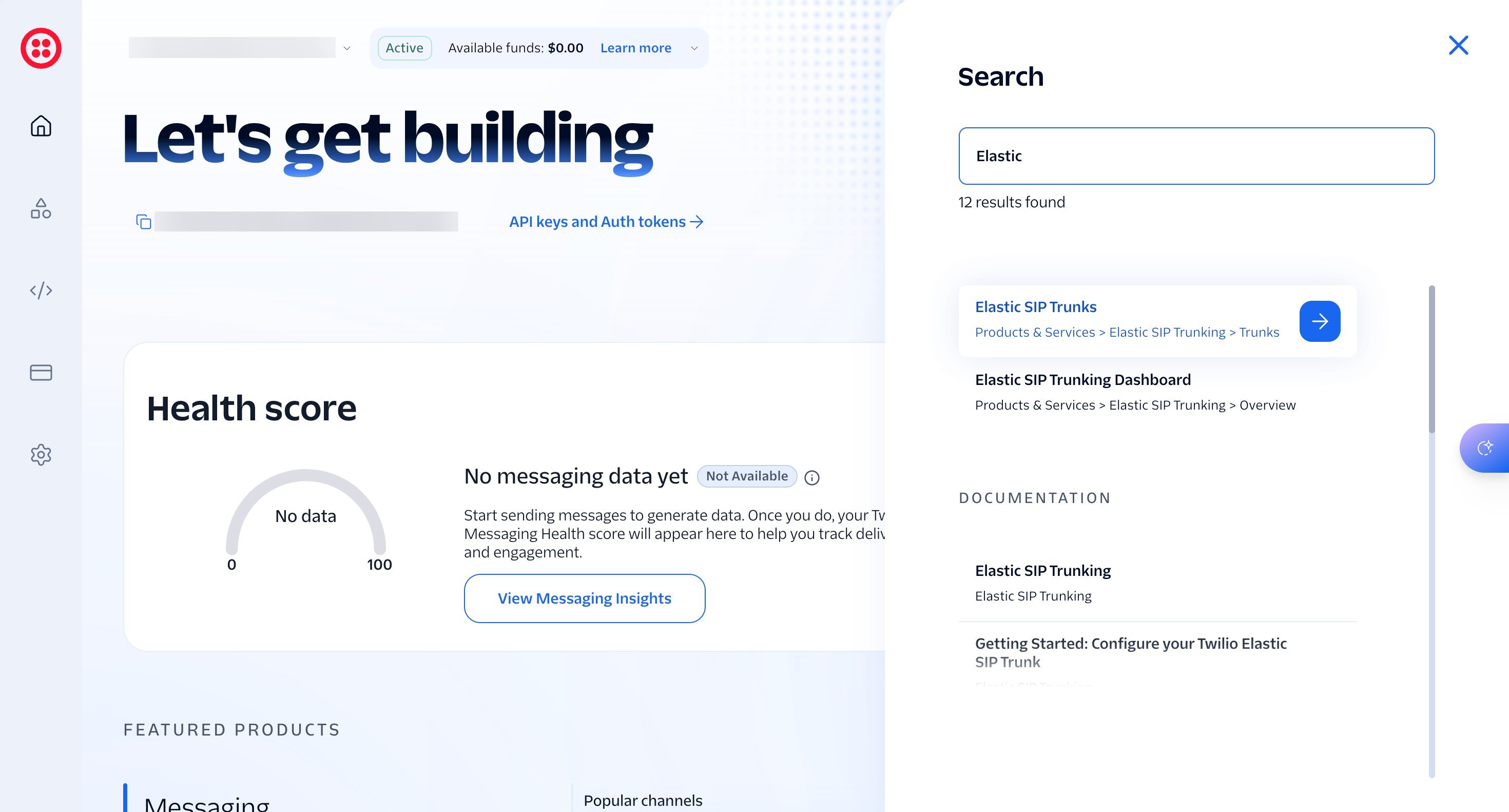
Sign in to the [Twilio Console](https://console.twilio.com). Use the **search bar** at the top, type `Elastic`, and open **Elastic SIP Trunks** (`Products & Services > Elastic SIP Trunking > Trunks`).
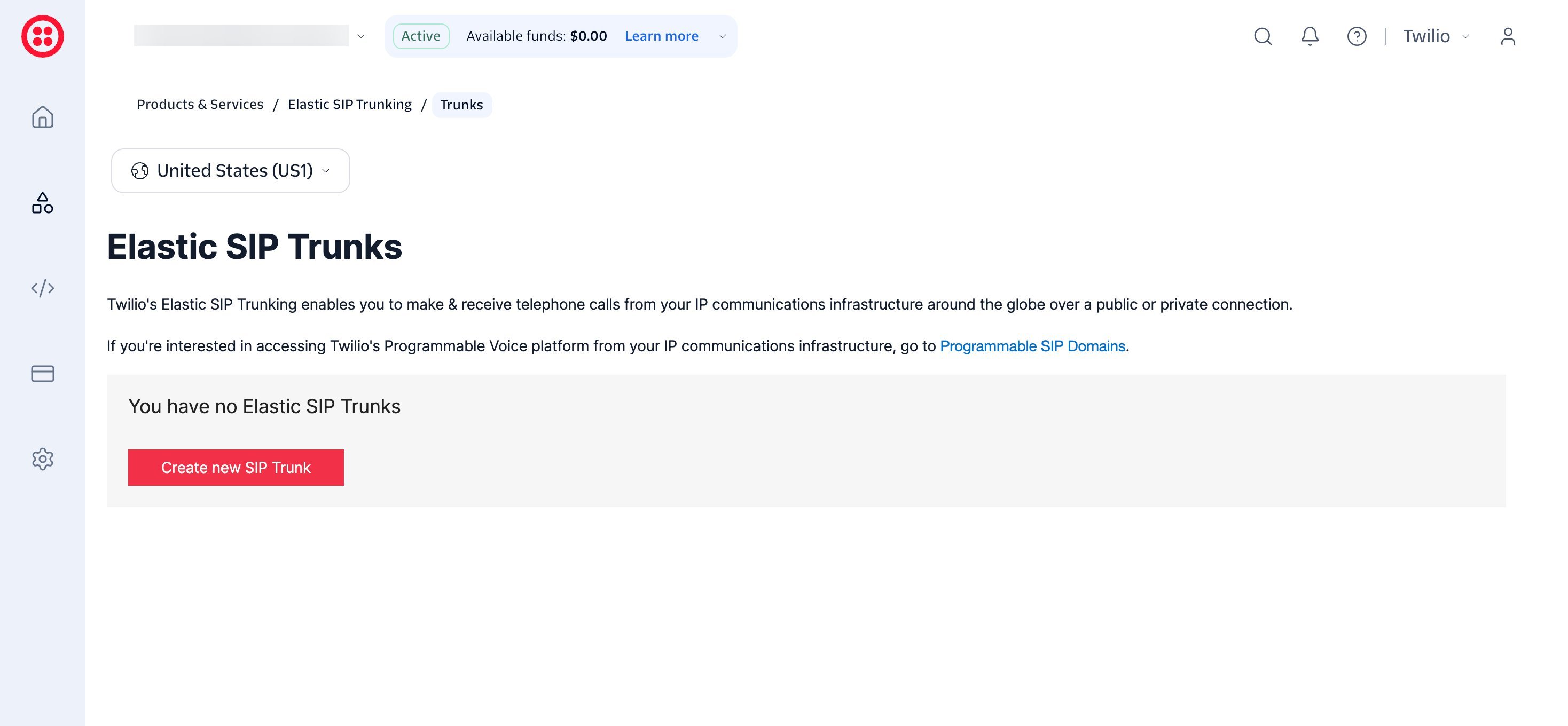
 On the **Elastic SIP Trunks** page, click **Create new SIP Trunk**. Give it a recognizable name such as `Verbeo` and continue.
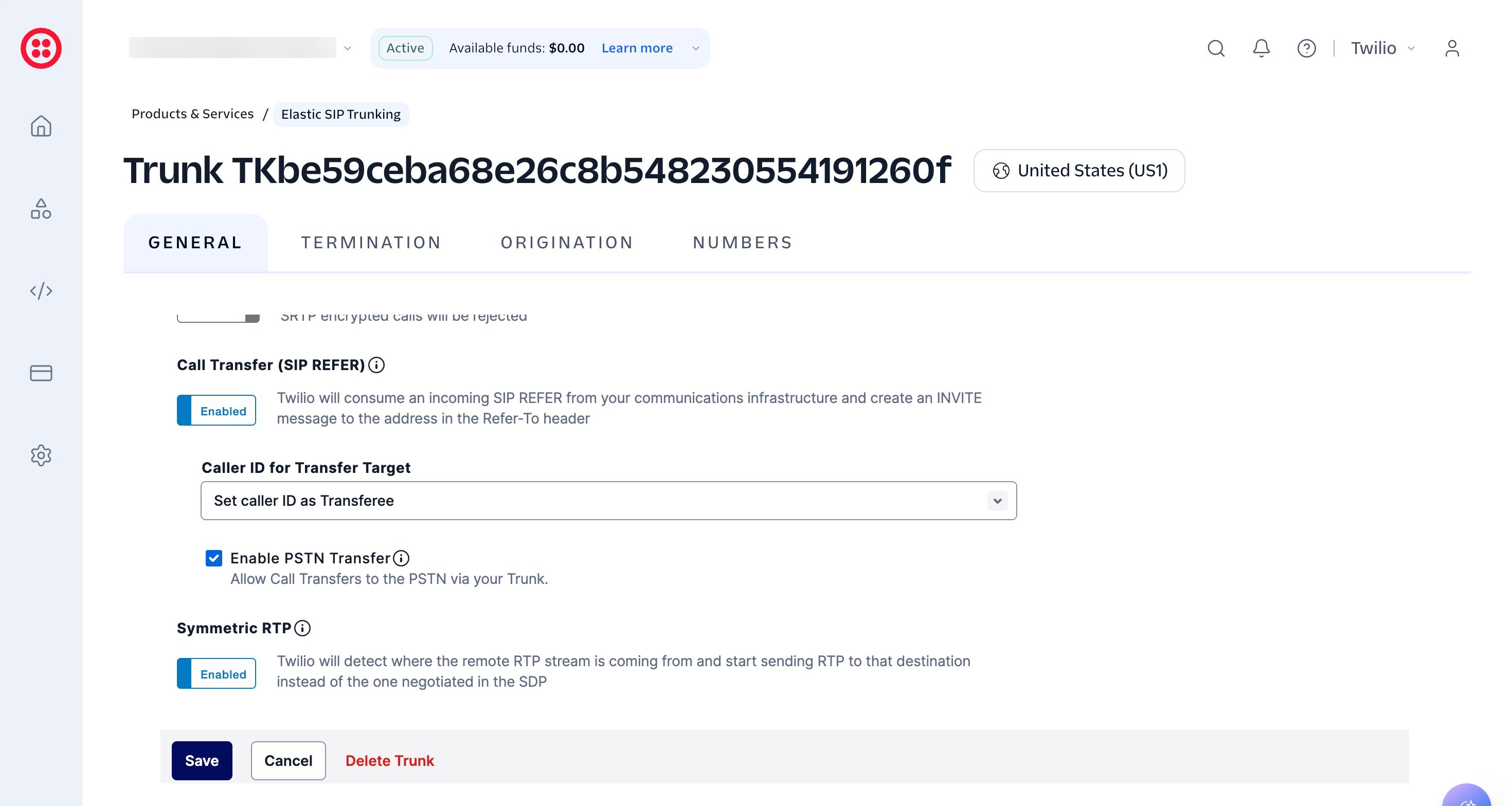
 On the **General** tab you can turn on **Call Transfer (SIP REFER)** and tick **Enable PSTN Transfer** if you want your AI agent to hand calls off to another phone number on the public network. **Symmetric RTP** can stay enabled. Click **Save** when done.
Leave these at their defaults if you don't need call transfers yet. You can always enable them later.
On the **General** tab you can turn on **Call Transfer (SIP REFER)** and tick **Enable PSTN Transfer** if you want your AI agent to hand calls off to another phone number on the public network. **Symmetric RTP** can stay enabled. Click **Save** when done.
Leave these at their defaults if you don't need call transfers yet. You can always enable them later.
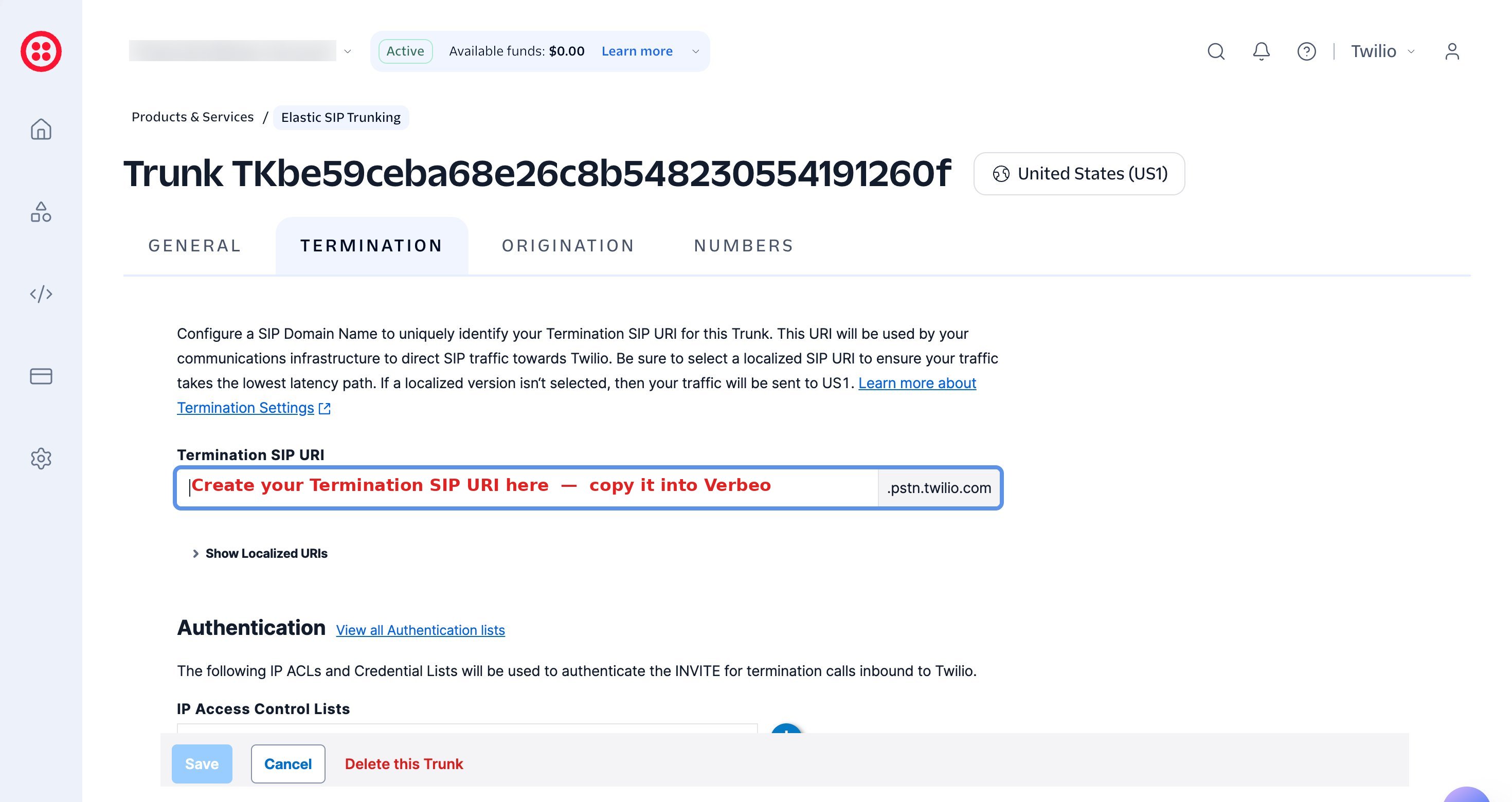
 Open the **Termination** tab. Under **Termination SIP URI**, enter a unique domain name (for example `verbeo-yourcompany`). Twilio turns it into a full address like `verbeo-yourcompany.pstn.twilio.com`.
**Copy this full URI. You will paste it into Verbeo later.**
Open the **Termination** tab. Under **Termination SIP URI**, enter a unique domain name (for example `verbeo-yourcompany`). Twilio turns it into a full address like `verbeo-yourcompany.pstn.twilio.com`.
**Copy this full URI. You will paste it into Verbeo later.**
 This **Termination URI** (`xxx.pstn.twilio.com`) is the value Verbeo needs for the **SIP termination hostname** field. It is **not** the same as your Verbeo origination SIP URI, so don't mix them up.
A trunk needs at least one authentication method before it can send calls. Scroll down to **Authentication**. Next to **Credential Lists**, click the blue **+** button to create one.
You can authenticate with an **IP Access Control List** instead, but a **Credential List** (username and password) is the simplest option and matches the fields Verbeo asks for.
This **Termination URI** (`xxx.pstn.twilio.com`) is the value Verbeo needs for the **SIP termination hostname** field. It is **not** the same as your Verbeo origination SIP URI, so don't mix them up.
A trunk needs at least one authentication method before it can send calls. Scroll down to **Authentication**. Next to **Credential Lists**, click the blue **+** button to create one.
You can authenticate with an **IP Access Control List** instead, but a **Credential List** (username and password) is the simplest option and matches the fields Verbeo asks for.
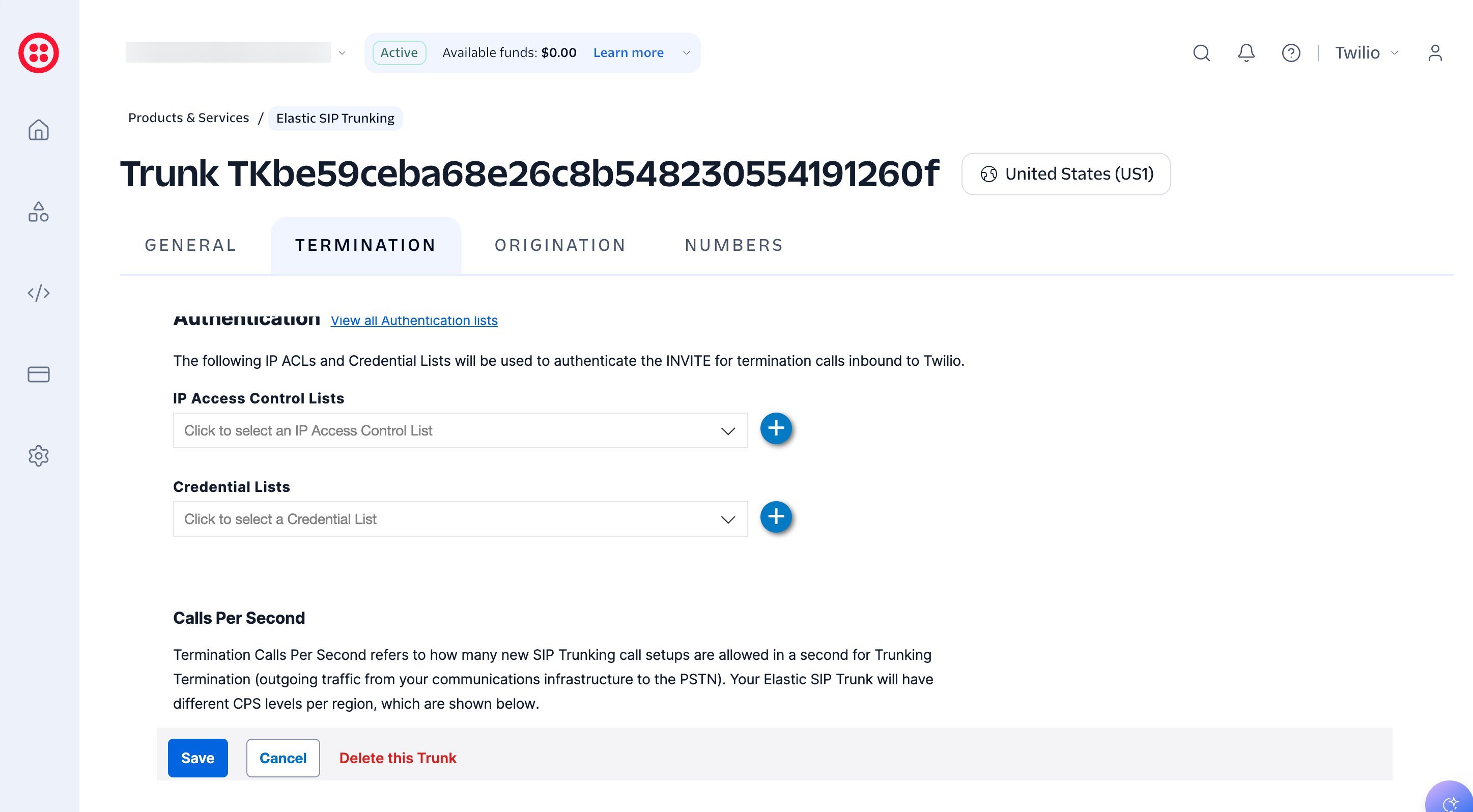 In the **New Credential List** dialog, enter:
* **Friendly Name**: e.g. `verbeo-auth`
* **Username**: choose a username
* **Password**: choose a strong password
**Save these credentials somewhere safe.** You'll enter the same username and password in Verbeo. Click **Create**, then make sure the new list is selected in the **Credential Lists** dropdown and click **Save** on the trunk.
In the **New Credential List** dialog, enter:
* **Friendly Name**: e.g. `verbeo-auth`
* **Username**: choose a username
* **Password**: choose a strong password
**Save these credentials somewhere safe.** You'll enter the same username and password in Verbeo. Click **Create**, then make sure the new list is selected in the **Credential Lists** dropdown and click **Save** on the trunk.
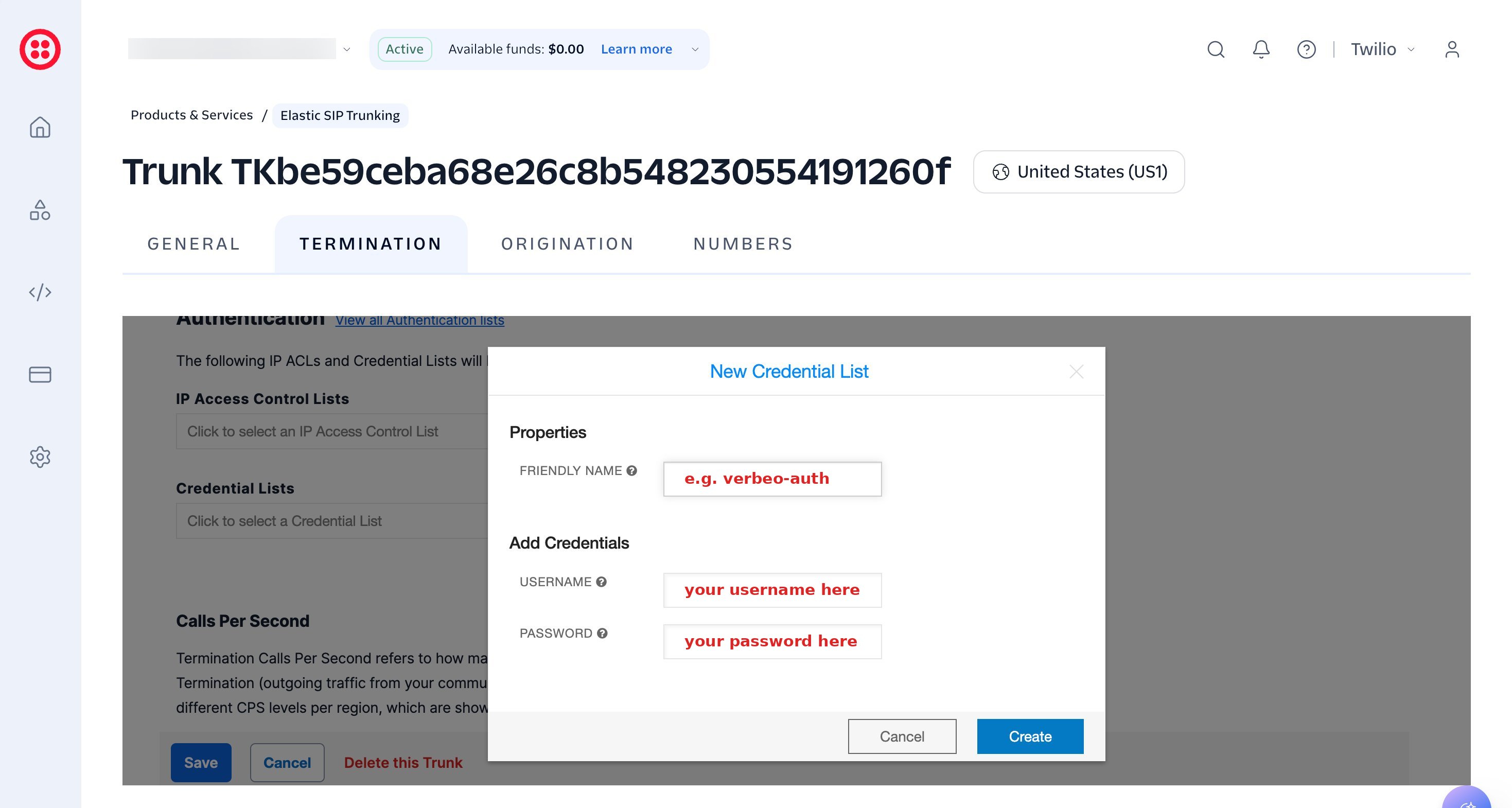 Go to the **Origination** tab. This is where you tell Twilio to send incoming calls to Verbeo. Click the **+** (or **Add new Origination URI**).
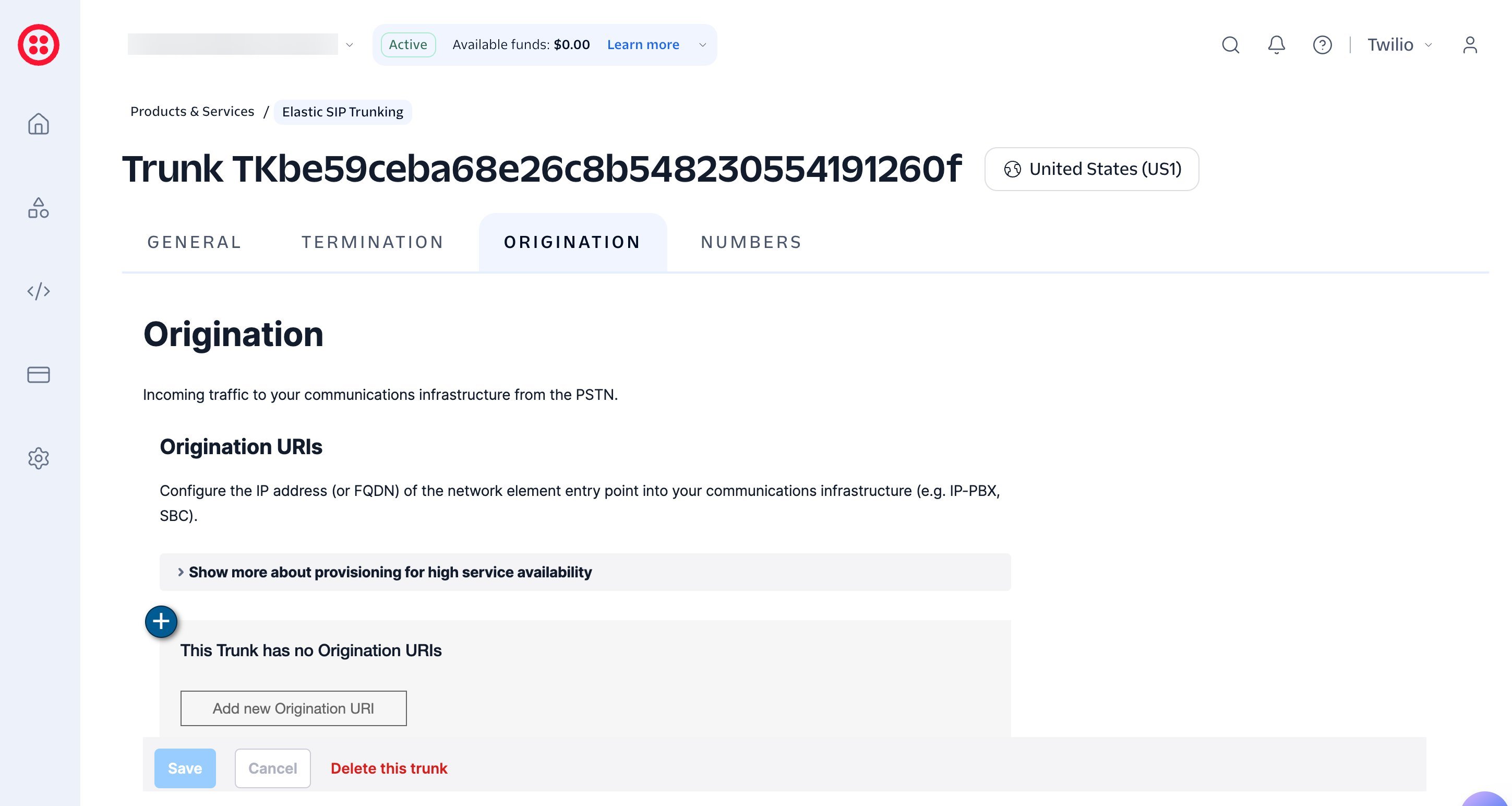 In the **Add Origination URL** dialog, enter the Verbeo origination SIP URI exactly as shown. This is the **same value for every Verbeo account**:
```text theme={null}
sip:1mq55afrqof.sip.livekit.cloud
```
Leave **Priority** at `10` and **Weight** at `10`. Click **Add**, then **Save**.
`sip:1mq55afrqof.sip.livekit.cloud` is Verbeo's shared origination endpoint. Every account uses the same URI, so you can copy it directly. It routes inbound calls from your Twilio number into Verbeo.
In the **Add Origination URL** dialog, enter the Verbeo origination SIP URI exactly as shown. This is the **same value for every Verbeo account**:
```text theme={null}
sip:1mq55afrqof.sip.livekit.cloud
```
Leave **Priority** at `10` and **Weight** at `10`. Click **Add**, then **Save**.
`sip:1mq55afrqof.sip.livekit.cloud` is Verbeo's shared origination endpoint. Every account uses the same URI, so you can copy it directly. It routes inbound calls from your Twilio number into Verbeo.
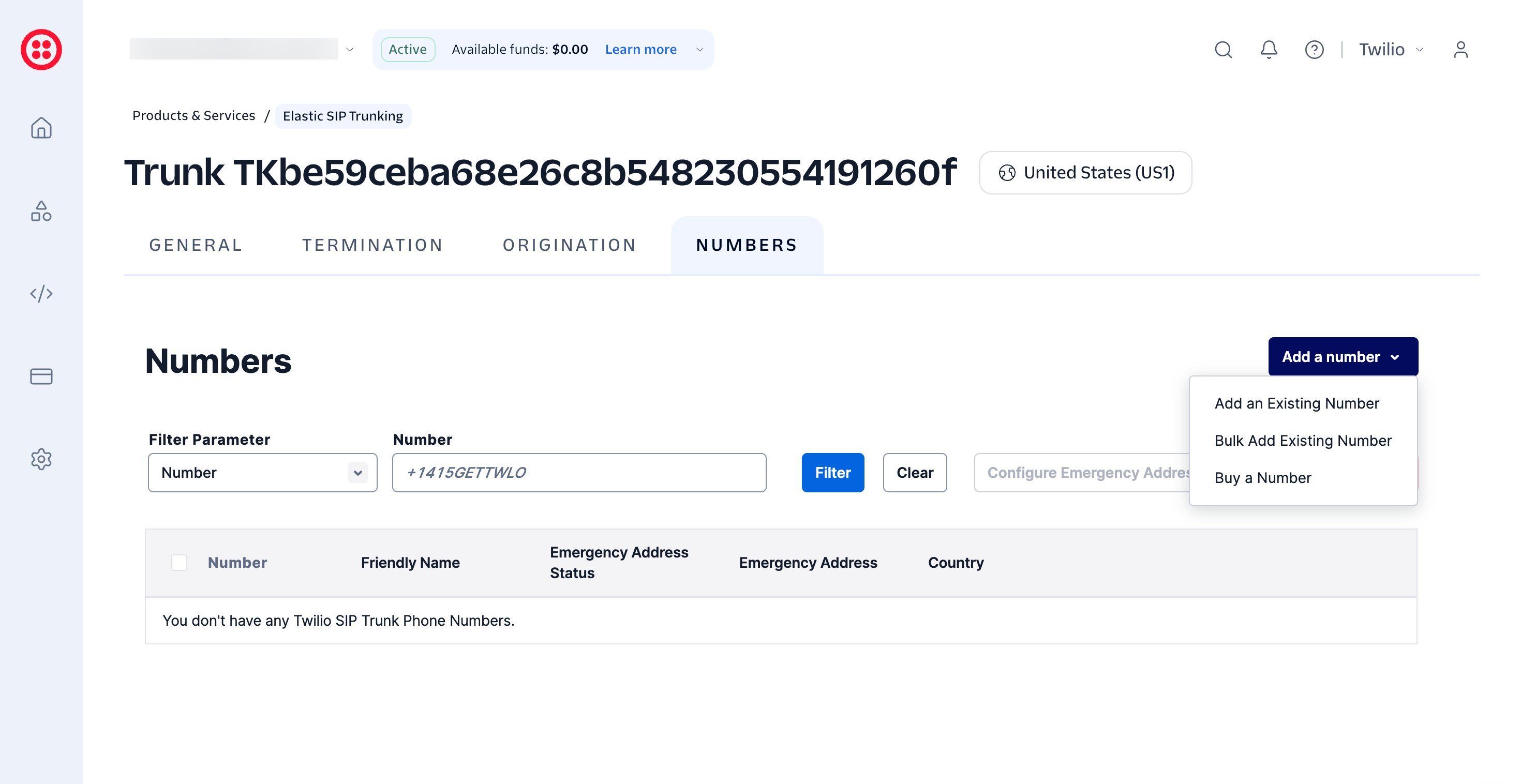
 Open the **Numbers** tab, click **Add a number**, and choose **Add an Existing Number** (or **Buy a Number** if you don't have one yet).
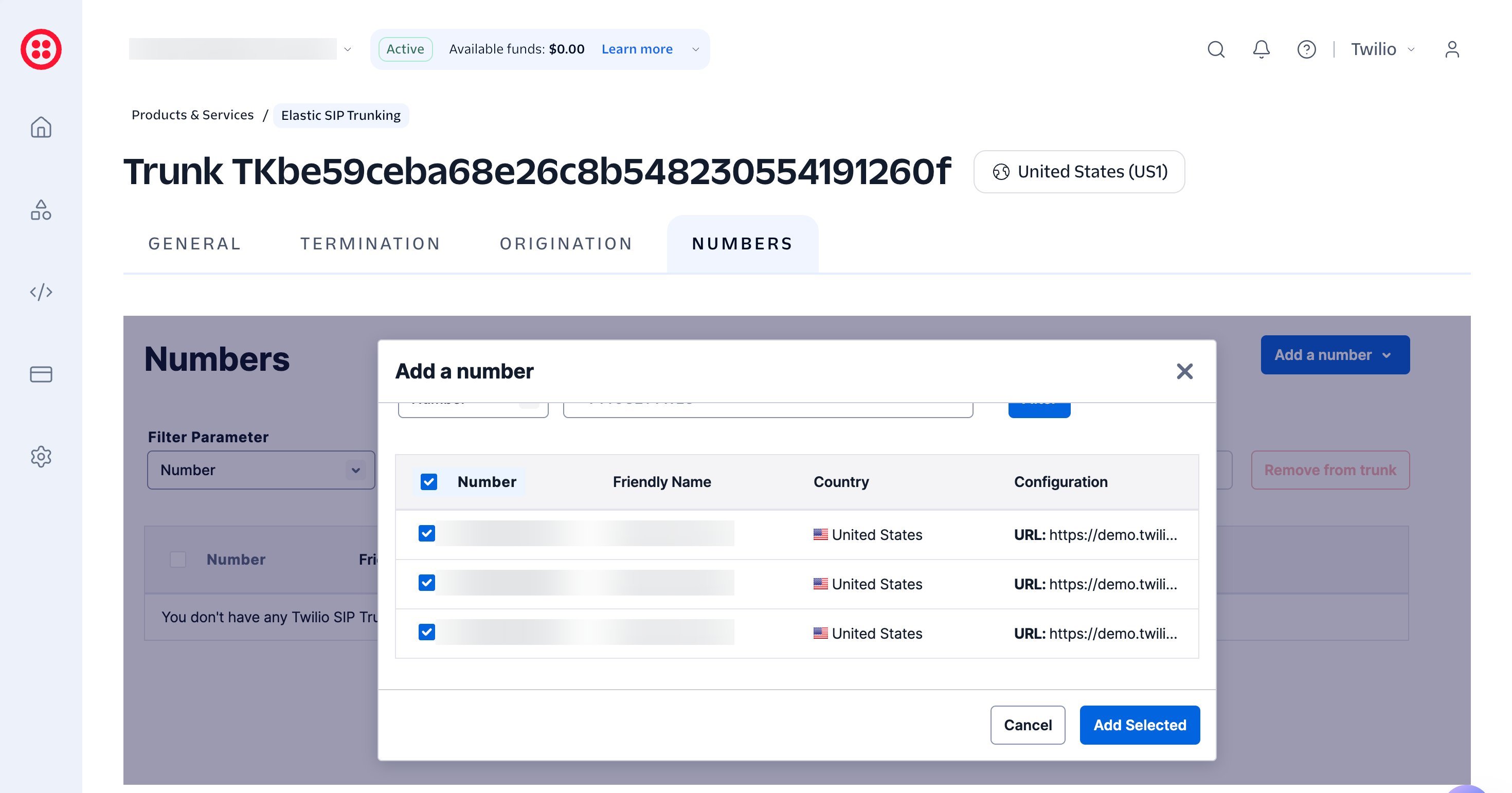
 Tick the number(s) you want to route through this trunk, then click **Add Selected**. Your number is now bound to the trunk.
 ## Part 2: Register the number in Verbeo
In the Verbeo AI dashboard, open **Phone Numbers** from the left sidebar, then click **Add Number** (or **Add Your First Number**).
In the **Add Phone Number** dialog, fill in the fields using the values from Part 1:
* **Phone Number** *(top of the dialog)*: your Twilio number in E.164 format, e.g. `+14155550123`.
* **SIP termination hostname**: the **Termination URI** from Step 4 (`xxx.pstn.twilio.com`).
* **SIP Trunk User Name**: the username from your Credential List (Step 6).
* **SIP Trunk Password**: the password from your Credential List (Step 6).
* **Nickname** *(optional)*: a friendly label, e.g. `Main line`.
* **Outbound Transport**: `TCP` is recommended.
* **Agent Assignments**: pick your **Inbound Calls Agent** and **Outbound Calls Agent**.
Click **Add Phone Number** to finish.
## Part 2: Register the number in Verbeo
In the Verbeo AI dashboard, open **Phone Numbers** from the left sidebar, then click **Add Number** (or **Add Your First Number**).
In the **Add Phone Number** dialog, fill in the fields using the values from Part 1:
* **Phone Number** *(top of the dialog)*: your Twilio number in E.164 format, e.g. `+14155550123`.
* **SIP termination hostname**: the **Termination URI** from Step 4 (`xxx.pstn.twilio.com`).
* **SIP Trunk User Name**: the username from your Credential List (Step 6).
* **SIP Trunk Password**: the password from your Credential List (Step 6).
* **Nickname** *(optional)*: a friendly label, e.g. `Main line`.
* **Outbound Transport**: `TCP` is recommended.
* **Agent Assignments**: pick your **Inbound Calls Agent** and **Outbound Calls Agent**.
Click **Add Phone Number** to finish.
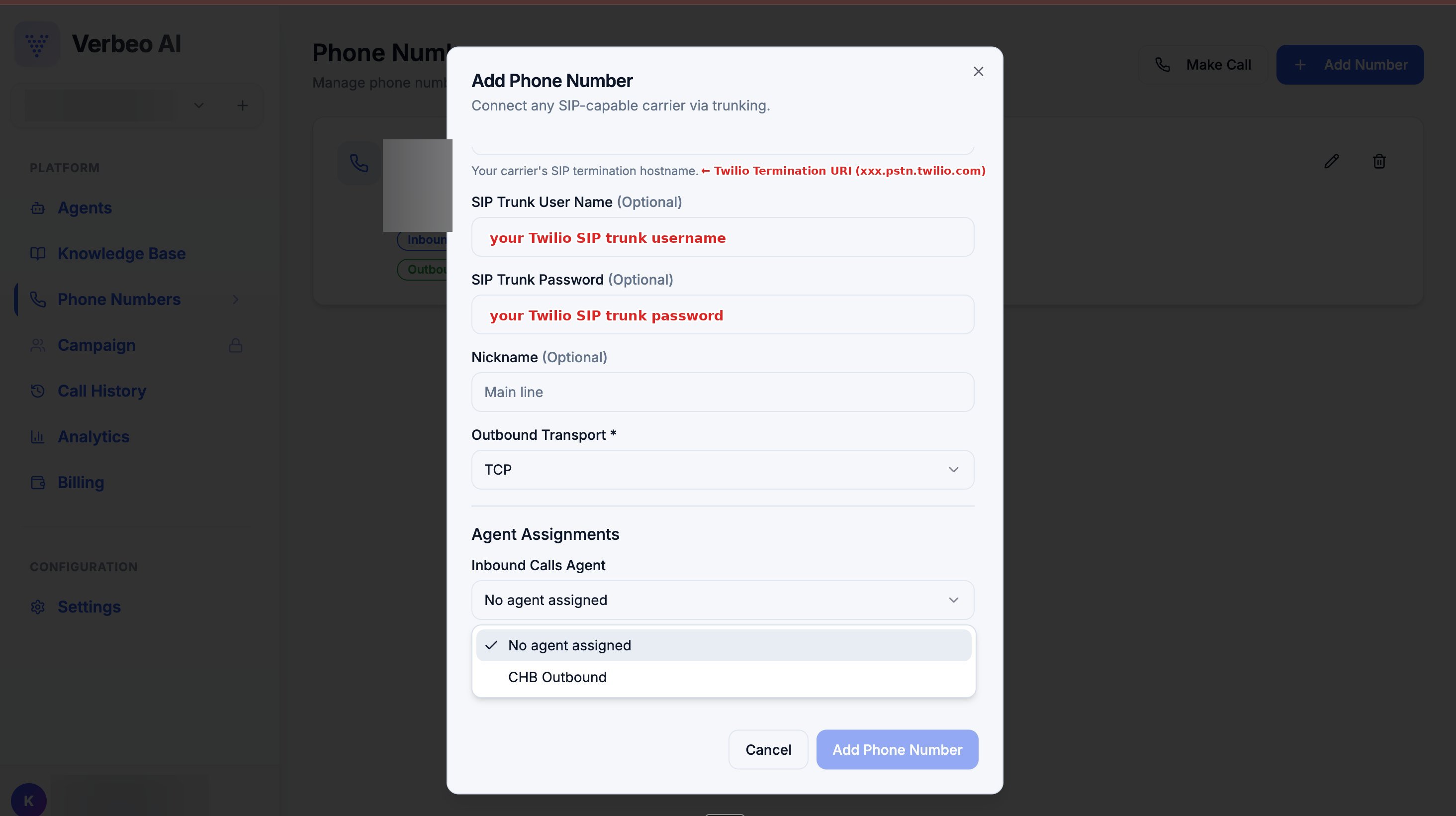 **SIP termination hostname = the Twilio Termination URI** (`xxx.pstn.twilio.com`), **not** your Verbeo origination SIP URI. Pasting the wrong one is the most common setup mistake.
## You're done
Your Twilio number is now connected to Verbeo. Place a quick test call to confirm:
* **Inbound:** call your Twilio number, and your assigned inbound agent should answer.
* **Outbound:** use **Make Call** in Verbeo to dial out through the number.
- **Termination vs. origination URI mixed up.** The Verbeo **SIP termination hostname** must be the Twilio `xxx.pstn.twilio.com` value, and Twilio's **Origination URI** must be `sip:1mq55afrqof.sip.livekit.cloud`.
- **Credentials don't match.** The username and password in Verbeo must be identical to the Twilio Credential List entries.
- **No authentication on the trunk.** Confirm the Credential List is actually selected and saved on the Twilio **Termination** tab.
- **Number not attached.** Re-check the **Numbers** tab to confirm the number is bound to this trunk.
- **No agent assigned.** Inbound calls need an **Inbound Calls Agent** selected on the number in Verbeo.
This documentation is built and hosted on [Mintlify](https://mintlify.com), a developer documentation platform.
**SIP termination hostname = the Twilio Termination URI** (`xxx.pstn.twilio.com`), **not** your Verbeo origination SIP URI. Pasting the wrong one is the most common setup mistake.
## You're done
Your Twilio number is now connected to Verbeo. Place a quick test call to confirm:
* **Inbound:** call your Twilio number, and your assigned inbound agent should answer.
* **Outbound:** use **Make Call** in Verbeo to dial out through the number.
- **Termination vs. origination URI mixed up.** The Verbeo **SIP termination hostname** must be the Twilio `xxx.pstn.twilio.com` value, and Twilio's **Origination URI** must be `sip:1mq55afrqof.sip.livekit.cloud`.
- **Credentials don't match.** The username and password in Verbeo must be identical to the Twilio Credential List entries.
- **No authentication on the trunk.** Confirm the Credential List is actually selected and saved on the Twilio **Termination** tab.
- **Number not attached.** Re-check the **Numbers** tab to confirm the number is bound to this trunk.
- **No agent assigned.** Inbound calls need an **Inbound Calls Agent** selected on the number in Verbeo.
This documentation is built and hosted on [Mintlify](https://mintlify.com), a developer documentation platform.